Building Data Catalog Tables in Dashboards
Introduction
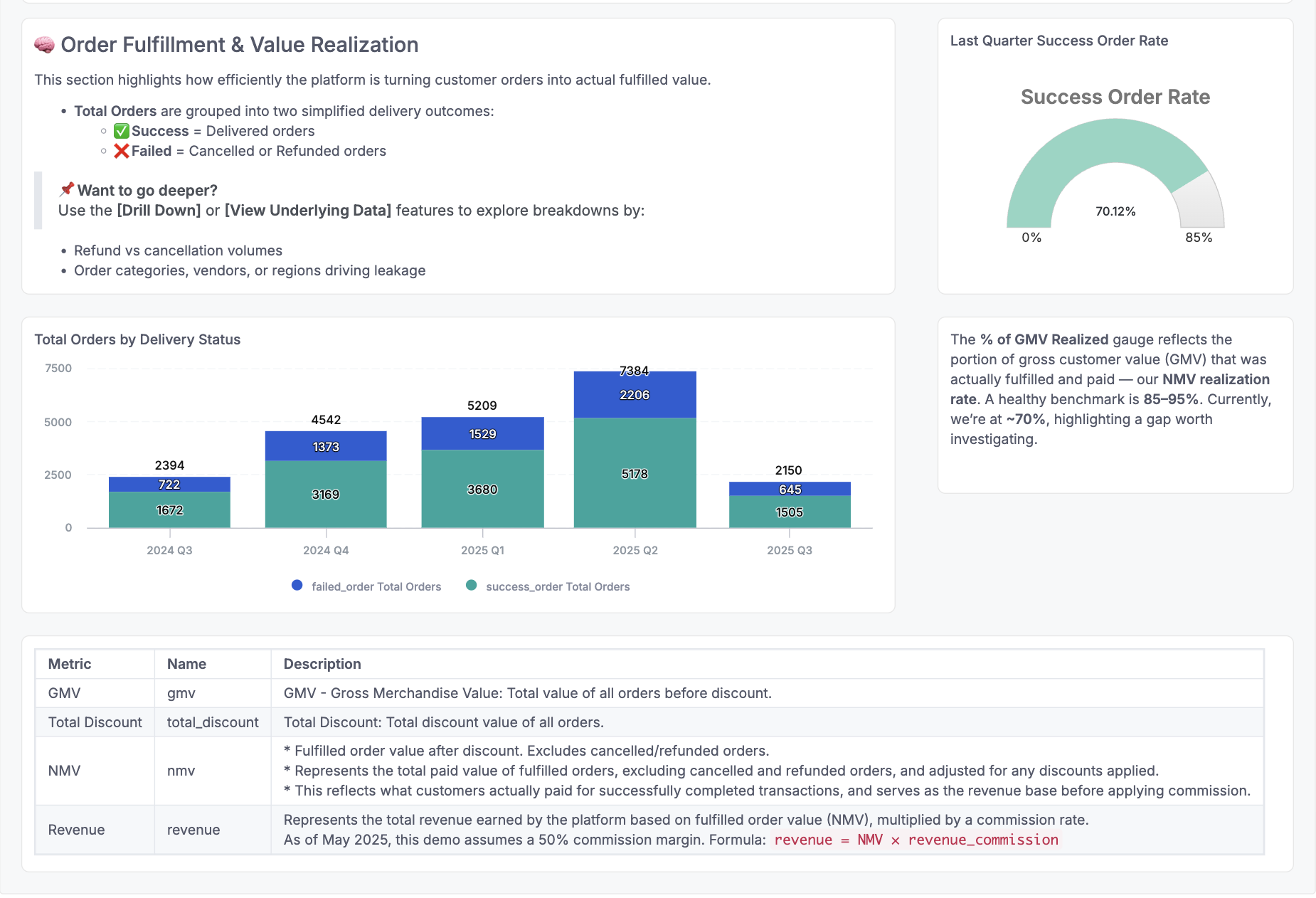
Data catalog tables are documentation tables that display your metrics and dimensions metadata (descriptions, labels, types) directly in Canvas Dashboards. These tables automatically stay in sync with your data models and datasets, creating a single source of truth for your data documentation.
This guide will show you how to build interactive data catalogs that help your users understand available metrics and dimensions without leaving the dashboard.
Key Benefits
- Self-service analytics: Users can understand data definitions without external documentation
- Always up-to-date: Automatically reflects any changes to your model definitions
- dbt integration: Seamlessly syncs descriptions from your dbt models
How It Works
Metadata Reference Syntax
You can reference metrics and dimensions metadata in Canvas Dashboard text blocks using this syntax pattern:
For Metrics (from datasets):
${<dataset_name>.metric.<metric_name>.<attribute_name>}
For Dimensions (from models):
${<model_name>.dimension.<dimension_name>.<attribute_name>}
Syntax Components:
<dataset_name>: Your actual dataset name<model_name>: Your actual model name<metric_name>: Your actual metric name<dimension_name>: Your actual dimension name<attribute_name>: The attribute you want to displaymetricanddimension: Fixed keywords
Available Attributes:
description: The field's description textlabel: The display label of the fieldtype: The data type of the fieldname: The field name itself
Examples:
${demo_ecommerce.metric.gmv.description}- Gets the description of thegmvmetric from thedemo_ecommercedataset${users_model.dimension.country_name.label}- Gets the label of thecountry_namedimension from theusers_modelmodel
Step-by-Step Implementation
Step 1: Prepare Your Data Models
First, ensure your models have proper descriptions and labels. You can define these directly in your AML models:
Model ecommerce_orders {
  type: 'table'
  label: 'E-commerce Orders'
  description: 'Order transactions data'

  dimension id {
    label: 'Order ID'
    type: 'text'
    description: 'Unique identifier for each order'
  }

  dimension user_id {
    label: 'User ID'
    type: 'text'
    description: 'Reference to the user who placed the order'
  }

  dimension created_at {
    label: 'Created Date'
    type: 'datetime'
    description: 'Date-stamp of the order when it was created'
  }
}

Dataset demo_ecommerce {
  label: 'Demo E-commerce'
  description: 'E-commerce demo dataset with orders, users, and products'

  models: [ecommerce_orders, ecommerce_users, ecommerce_products, ...]

  metric gmv {
    label: 'GMV - Gross Merchandise Value'
    type: 'number'
    description: 'GMV - Gross Merchandise Value: Total value of all orders before discount.'
    definition: @aql ecommerce_order_items | sum(ecommerce_order_items.quantity * ecommerce_products.price);;
  }

  metric revenue {
    label: 'Total Revenue (Platform)'
    type: 'number'
    description: 'Represents the total revenue earned by the platform based on fulfilled order value (NMV), multiplied by a commission rate.'
    definition: @aql nmv * revenue_commission;;
  }

  metric aov {
    label: 'AOV - Average Order Value'
    type: 'number'
    description: 'AOV - Average Order Value: Average value per order (GMV / number of orders).'
    definition: @aql gmv / total_orders;;
  }
}
Step 2: Create a Data Catalog Table in Canvas Dashboard
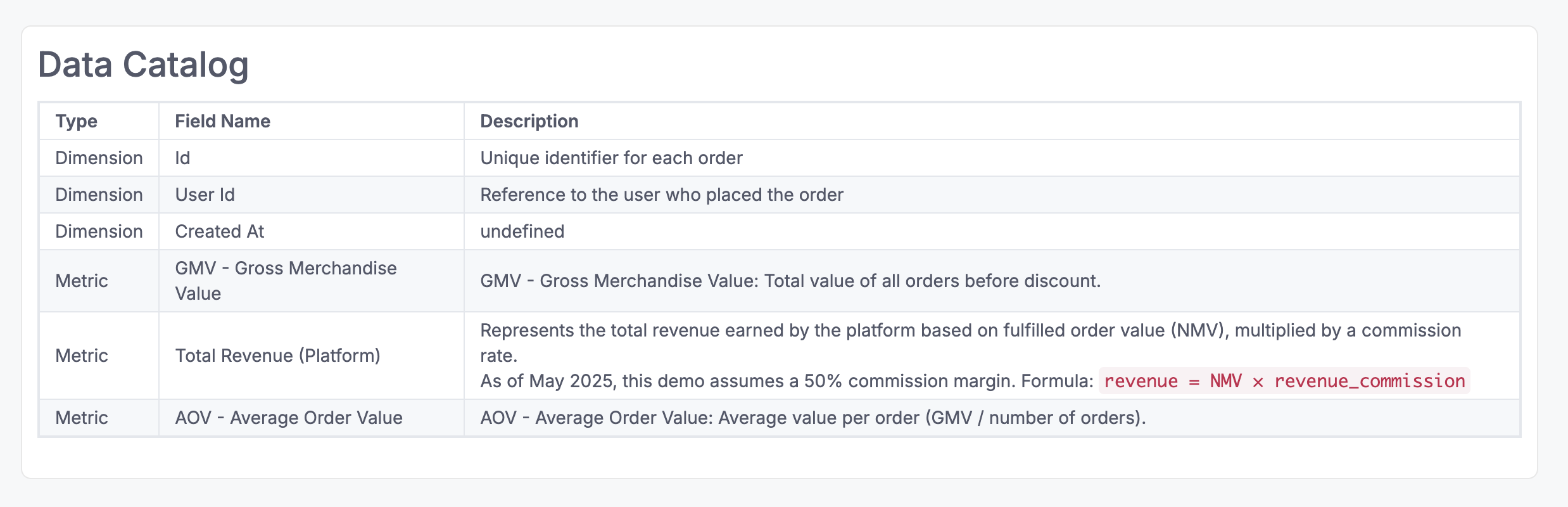
In your Canvas Dashboard, add a Text Block with a table that combines both dimensions and metrics:
Dashboard my_dashboard {
  title: 'Analytics Dashboard with Data Catalog'

  block data_catalog: TextBlock {
    content: @md ## Data Catalog

| Type      | Field Name                                              | Description                                                     |
|-----------|--------------------------------------------------------|------------------------------------------------------------------|
| Dimension | ${ecommerce_orders.dimension.id.label}                | ${ecommerce_orders.dimension.id.description}                   |
| Dimension | ${ecommerce_orders.dimension.user_id.label}           | ${ecommerce_orders.dimension.user_id.description}              |
| Dimension | ${ecommerce_orders.dimension.created_at.label}        | ${ecommerce_orders.dimension.created_at.description}           |
| Metric    | ${demo_ecommerce.metric.gmv.label}          | ${demo_ecommerce.metric.gmv.description}             |
| Metric    | ${demo_ecommerce.metric.revenue.label}      | ${demo_ecommerce.metric.revenue.description}         |
| Metric    | ${demo_ecommerce.metric.aov.label}          | ${demo_ecommerce.metric.aov.description}             |;;
  }
}
Integration with dbt
When using Holistics with dbt integration, field descriptions from your dbt schema files are automatically synced and become available through the metadata reference syntax. This means your data catalog tables will automatically stay up-to-date with your dbt documentation.
For details on setting up and using dbt integration, see dbt Integration.
Advanced Examples
Grouped by Business Domain
Organize your catalog by business areas for better navigation:
block domain_catalog: TextBlock {
  content: @md ## Metrics Catalog by Domain

### 📊 Revenue Metrics
| Metric   | Description                                               |
|----------|-----------------------------------------------------------|
| GMV      | ${demo_ecommerce.metric.gmv.description}                 |
| Revenue  | ${demo_ecommerce.metric.revenue.description}             |
| NMV      | ${demo_ecommerce.metric.nmv.description}                 |

### 🛍️ Customer Metrics
| Metric        | Description                                                    |
|---------------|----------------------------------------------------------------|
| Total Customers | ${demo_ecommerce.metric.total_customers.description}        |
| Repeat Rate   | ${demo_ecommerce.metric.repeat_rate.description}             |
| LTV           | ${demo_ecommerce.metric.ltv.description}                     |

### 📦 Operations Metrics
| Metric          | Description                                                   |
|-----------------|---------------------------------------------------------------|
| Order Count     | ${demo_ecommerce.metric.order_count.description}             |
| Avg Order Value | ${demo_ecommerce.metric.avg_order_value.description}         |
| Fulfillment Rate| ${demo_ecommerce.metric.fulfillment_rate.description}        |;;
}